
To prepare the Chromebooks for testing:
- The head proctor will send the latest updates from NWEA.
- Refer to this help page for how to enable the Kiosk mode and app.
To conduct MWEA MAP testing on Chromebooks follow these steps.
- Be sure all students have logged into the HIS network.
- Be sure all students have accessed Lightspeed.
- Go the Google Admin > Device Management > Chrome Devices.
- Select the "Search all organizations" then click on "organizational unit" to sort the Chromebooks into class groups. (see image)
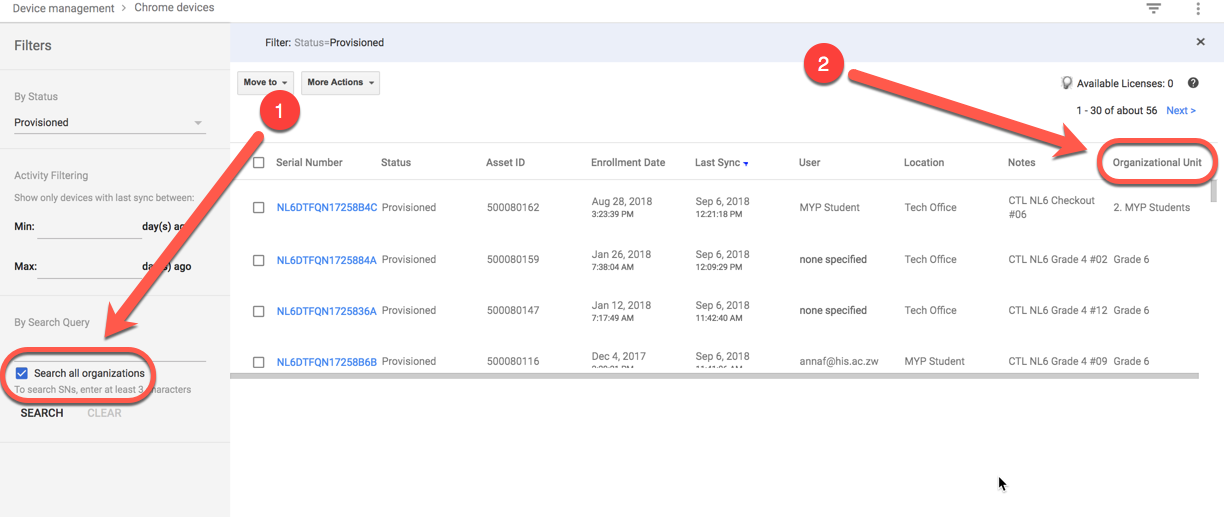
- Select every Chromebook that will be partaking in the test.
- Click the "Move to" button and select the group that has been created in the admin console called "NWEA MAP testing".
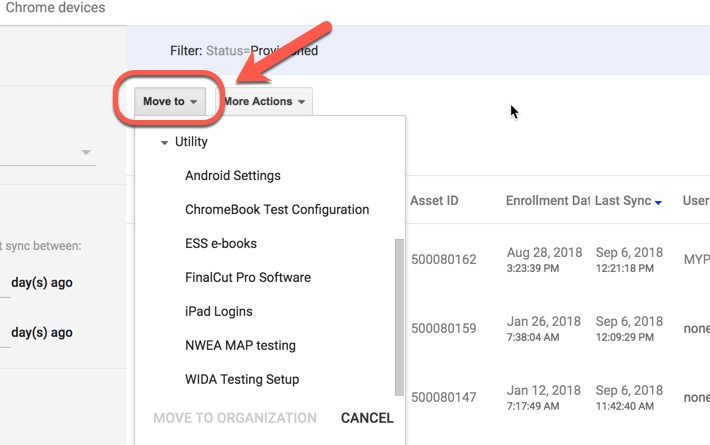
- Refresh the Admin page and wait a few minutes before going on - this seems to help pass along the settings.
- Have students sign out of their profile on their Chromebook.
- Their Chromebook should automatically log into the NWEA browser at this point.
- When the test is over move the students Chromebooks on Device Manager back to their Class Year Group.
- Refresh the Admin screen again.
- Student screens will automatically return to their login page after roughly five minutes. If they do not have the student power the Chromebook off and then back on.
As of March 2018 this page gives the directions for setting up the NWEA MAP lock down browser on Chromebooks.
The extension to the App store is here.